How to give every chat in a project the same files
Add files to a MultiChats project once and every chat in the folder can use them. Steps, Pro and Pro+ limits, and fixes for files that won't fit.
Twenty files and about 75,000 words. One MultiChats Pro project holds that much, enough for the paperwork behind a house move or a parent's care. Add the files once, and every chat in that project can read them. You no longer have to attach the same PDF to every question.
This walkthrough covers the website and the phone apps as of 19 October 2026. You can remove or swap any file later.
What a project is in MultiChats
A project is a folder in your sidebar with a Files section inside it. The sidebar says "folder" and the Files section says "project"; they mean the same thing.
Project files come with Pro and Pro+. One project holds:
Pro | Pro+ | |
|---|---|---|
Files per project | 20 | 100 |
Text per project | about 75,000 words | about 150,000 words |
Largest single file | 20 MB | 200 MB |
ChatGPT and Claude have their own Projects; Gemini has notebooks (checked on 19 October 2026). In MultiChats, files stay with the folder as you switch among models from different companies. Ask a GPT model about your tenancy agreement, then ask Claude or Gemini the same question. All three read the same documents.
Want to follow along as you read? Open MultiChats
1. Make the folder
On the website, if you have no folders yet, click New Folder in the sidebar. Once you have one, a small + next to the Folders heading makes another. The folder arrives named "New Folder" with the name ready to edit, so type something you will recognise, such as "Flat move".
On the phone, tap the + beside Folders in the sidebar, type a name and tap Create.
2. Add your files
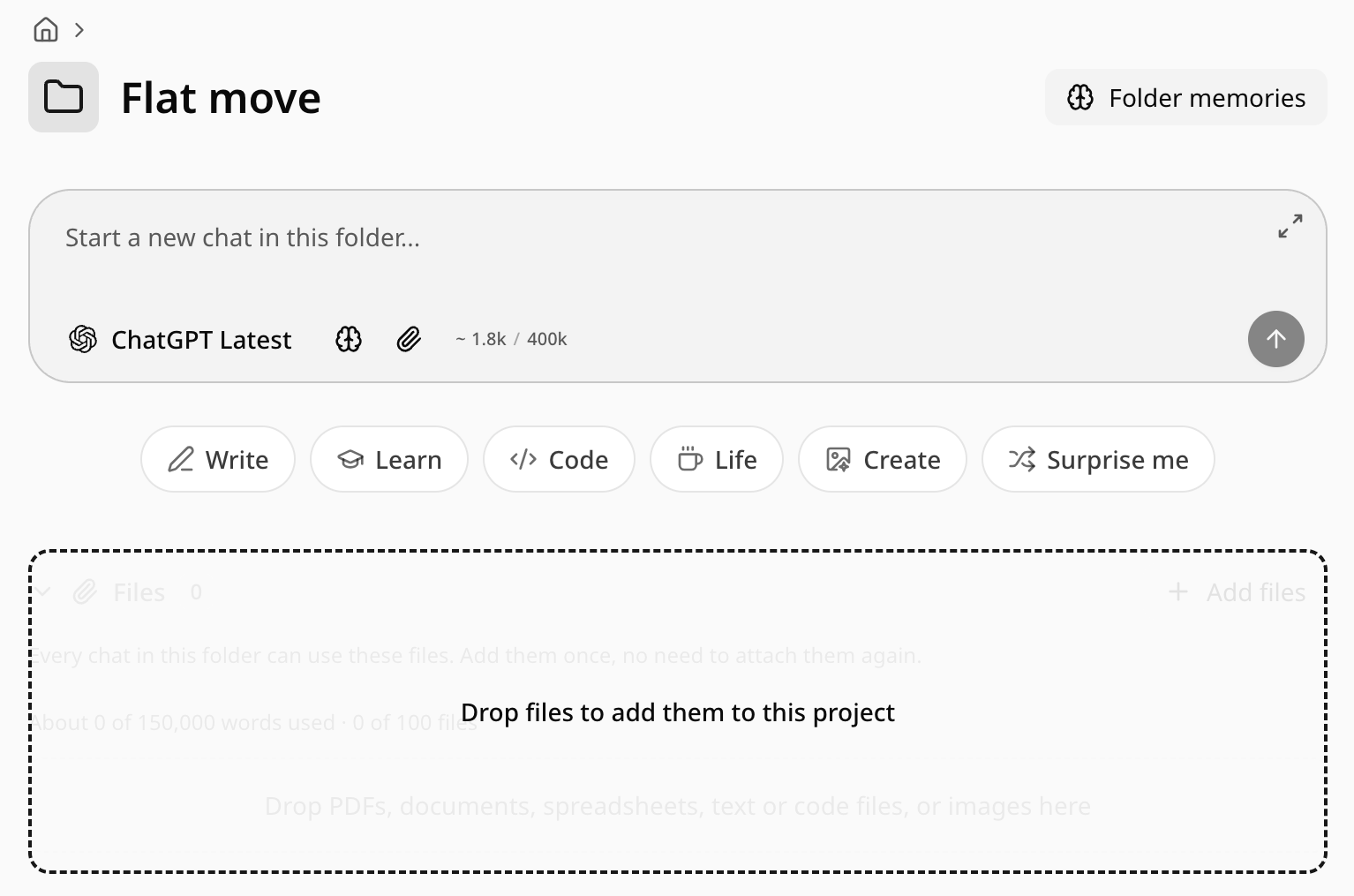
Click the folder in the sidebar to open it. The Files section is below the message box at the top of the folder page. It includes this reminder: "Every chat in this folder can use these files. Add them once, no need to attach them again."
Click Add files, or drag files from your desktop onto the section. It then says "Drop files to add them to this project". On the phone, Add files opens your phone's file picker.
PDFs, Word and Excel files, PowerPoint slides, OpenDocument files, plain text and images all work. Videos do not.
3. Let each file finish reading
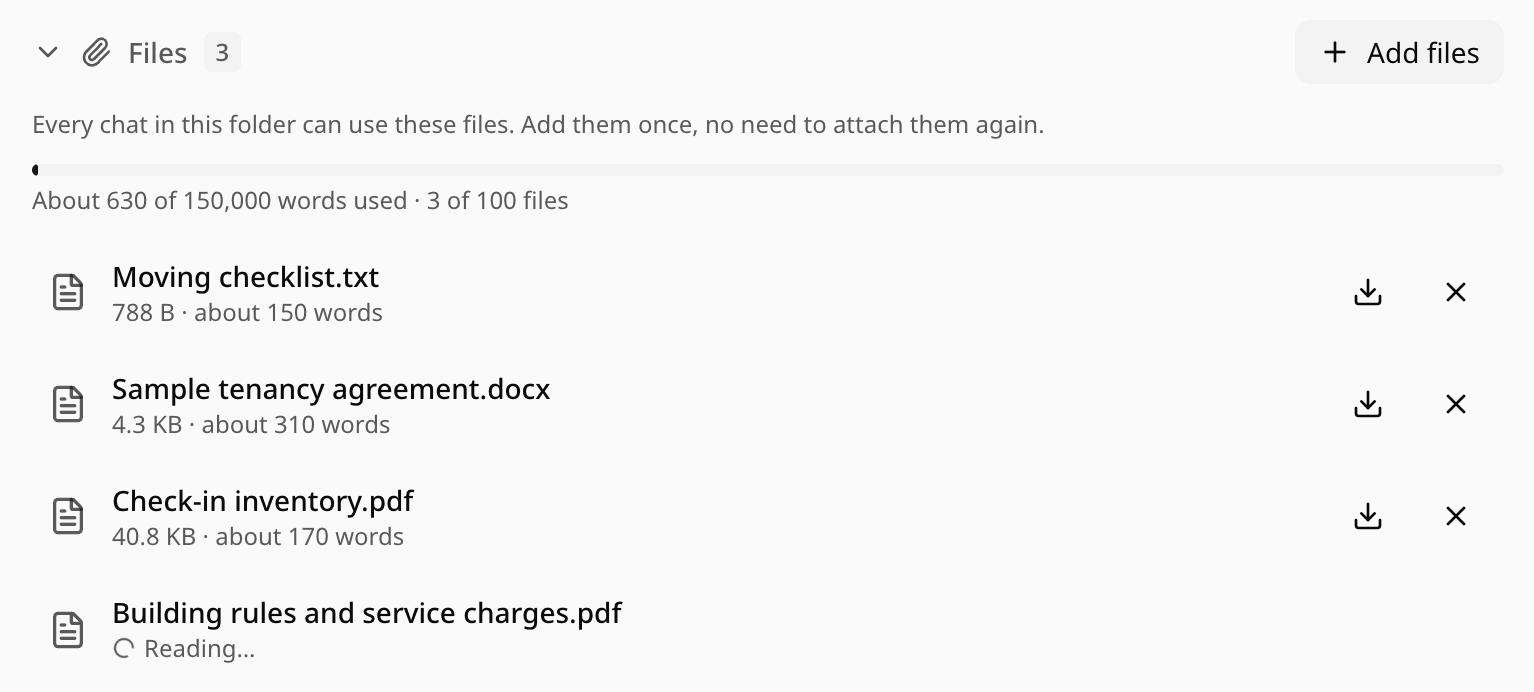
Each file shows "Uploading…", then "Reading…". In a batch, three go at a time and the rest show "Waiting…". A ready file shows its size and roughly how many words it holds.
A bar above the list shows how full the project is. It might say "About 18,000 of 75,000 words used · 4 of 20 files". On the website, the bar turns amber at nine tenths full.
Adding scanned paper? A PDF from a scanner or phone camera can be a picture of the page with no text inside. MultiChats runs text recognition on scans of up to 20 pages, but it can misread words or figures. Our guide to summarising a long PDF shows how to tell the two kinds apart. For a long scan, or one where the exact wording matters, a PDF with real text in it is the safer thing to add.
4. Chat inside the folder
Type into the message box on the folder page and the new chat is saved in that folder. To bring in an existing chat, open its menu in the sidebar and choose Move to. Pick the folder and click Move here, or drag the chat onto the folder. On the phone, tap the menu button next to a chat and choose Move to folder.
In any chat inside the folder, a small paperclip chip in the message box toolbar reads, for example, "3 project files". On the phone it is a paperclip with a number. The chip shows the files are in use; click it to return to the folder.
The files stay when you change models or branch the chat; a branch stays in the same folder. Temporary chats never use project files.

5. Keep the files up to date
Files do not update themselves. When a document changes, remove the old file and add the new one. Each file in the list has a download button and an X to remove it. On the website, removal is immediate; the phone asks first and warns that "Chats in this folder will stop using it."
Add a new version without removing the old one and both stay. Both count towards your limits, so the model may weigh two versions of the same lease.
Saving a document you wrote in MultiChats
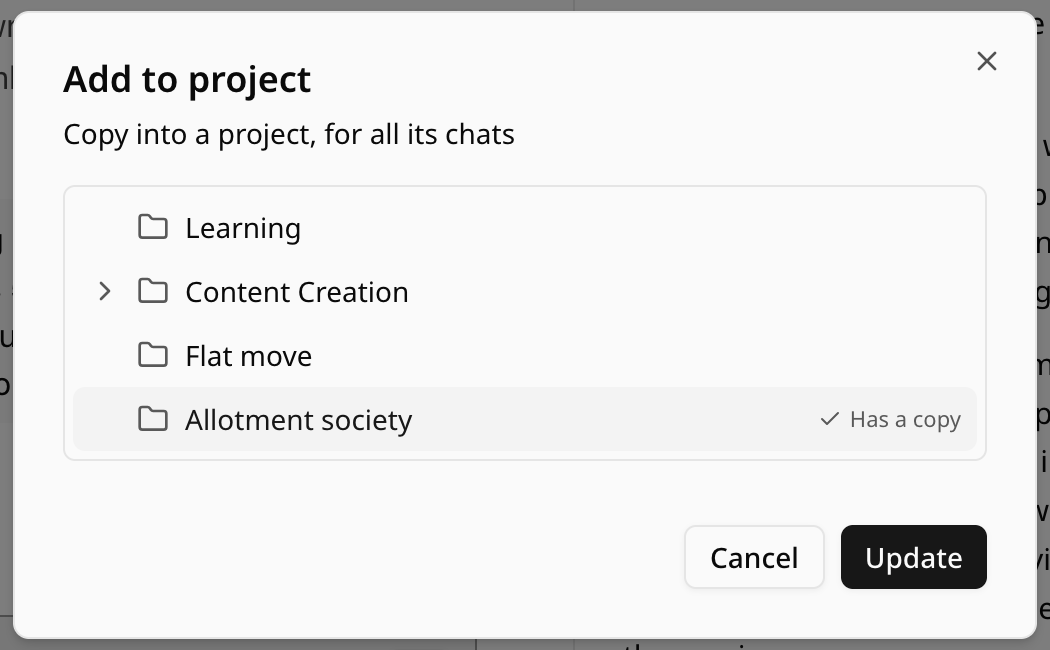
On the website, a document the AI writes for you opens in a panel beside the chat. Its toolbar has Add to project (on smaller screens, a folder icon with a plus). Choose a project. The chat's own folder is marked "This chat". Click Add, and MultiChats copies the current version into that project's Files as a Markdown file.
The copy does not follow your later edits. After changing the document, use Add to project again. The project is marked "Has a copy", the button reads Update, and the old copy is replaced. This step is also website-only.
When a file will not go in
"Doesn't fit: this project is full". The project has run out of words. Remove something you no longer need, or split a long file and add only the parts you use. The failed file keeps one of your file slots until you remove it.
"only the first part is used". This appears next to a very long PDF or document. If what you need sits near the end, split the file and add the parts separately.
"A project can hold 20 files." Files past the limit are not added, and the message says how many were left out. Remove a file to make room. On Pro+ a project holds 100.
"Couldn't read this file" or "This file type can't be used". Save it as a PDF or plain text and add that instead.
How the model reads a big project
While your files are small enough, they go along with every message in full. For larger projects, the model gets a file list and looks up relevant parts for each question. A model that cannot look things up gets the files that fit, with a note naming the rest. You do not have to switch anything on.
Use descriptive file names: "Tenancy agreement 2026.pdf" tells the model far more than "scan0042.pdf". When you want an answer from one file, mention it by name. For more on long files in general, see which AI handles the longest documents.
Instructions, memories and free accounts
Folders have no box for instructions. To give every chat in the project a brief ("explain things as if I am a first-time tenant, and quote the clause number"), write it in a short text file and add it with the others, or save it with the Folder memories button at the top of the folder page. Folder memories are a paid feature too.
A free account can still keep chats tidy in folders. On the website, the New Folder button only appears on Pro and Pro+, so create your first folder in the phone app. On a free account the Files section shows Upgrade to add files instead of the add button.
If you move from Pro back to the free plan, your files are kept. Chats in the folder stop using them until you upgrade again. The chip in those chats appears crossed out on the website and dimmed on the phone.