How to write a document with AI and edit it beside the chat
Ask for a document in plain words, then edit it in a panel beside the chat: formatting, AI changes to a passage, and version history.
The allotment society meets on Thursday. You said you would bring a one-page report on the year: the new water butts, the waiting list, the rent going up in March. It is Tuesday night and your notes are on the back of an envelope.
Type the notes into a chat and ask for the report. It arrives as a document in a panel beside the conversation, where you can edit it by hand or have the AI rework a single paragraph. Here is each part, as it works on 19 October 2026.
Before you start: documents work on the MultiChats website when you are signed in, on every plan including the free one. The phone apps show the document's text in the conversation, but they do not have the panel yet.
Ask for it the way you would ask a person
Use ordinary words and the model writes its answer as a document.
Open a new chat on the website and choose a model in the picker.
Say what the document is, who will read it and how long it should be, then paste your notes. For example: "Write a one-page report for our allotment society's annual meeting, for the members, covering these points:" followed by your list.
Send it. While the model writes, a card in the chat shows "Writing the document…" and a running word count.
When it finishes, the document opens beside the chat and the card reads "Open beside the chat".
The same works for a cover letter, house rules for a flat share or a day-by-day trip plan. Name the reader and the length every time.
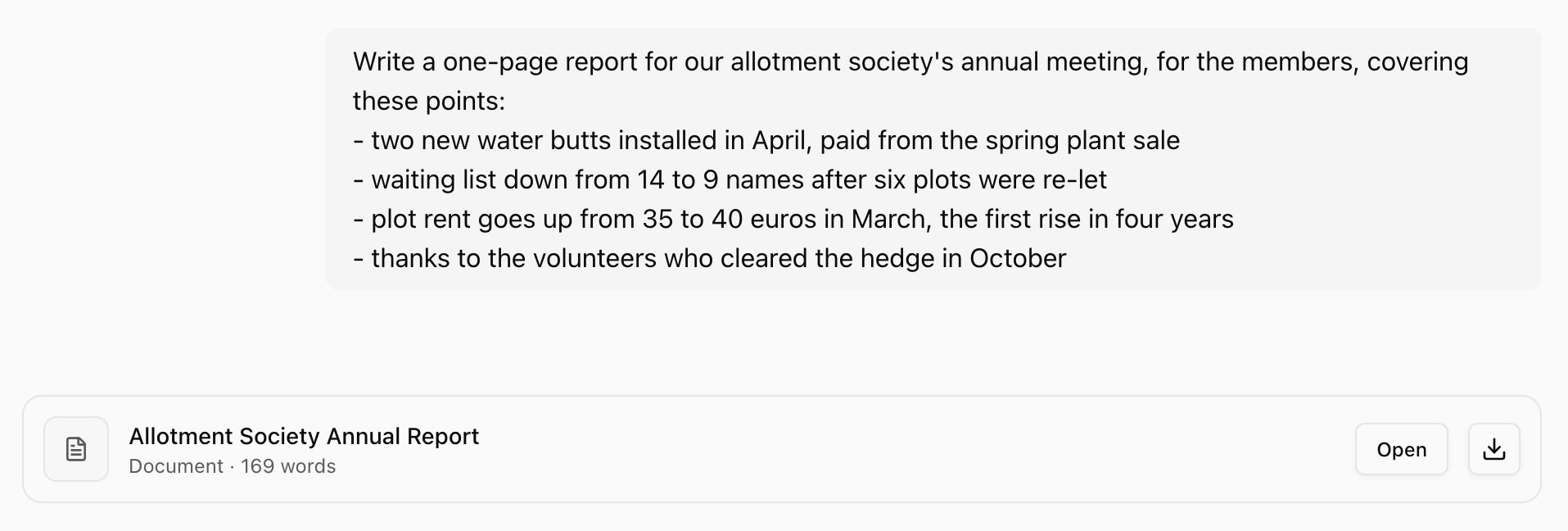
With the panel closed, the card shows the title, the word count and an "Open" button. Only a document written in reply to your latest message opens by itself.
Want to follow along as you read? Open MultiChats
What the panel gives you
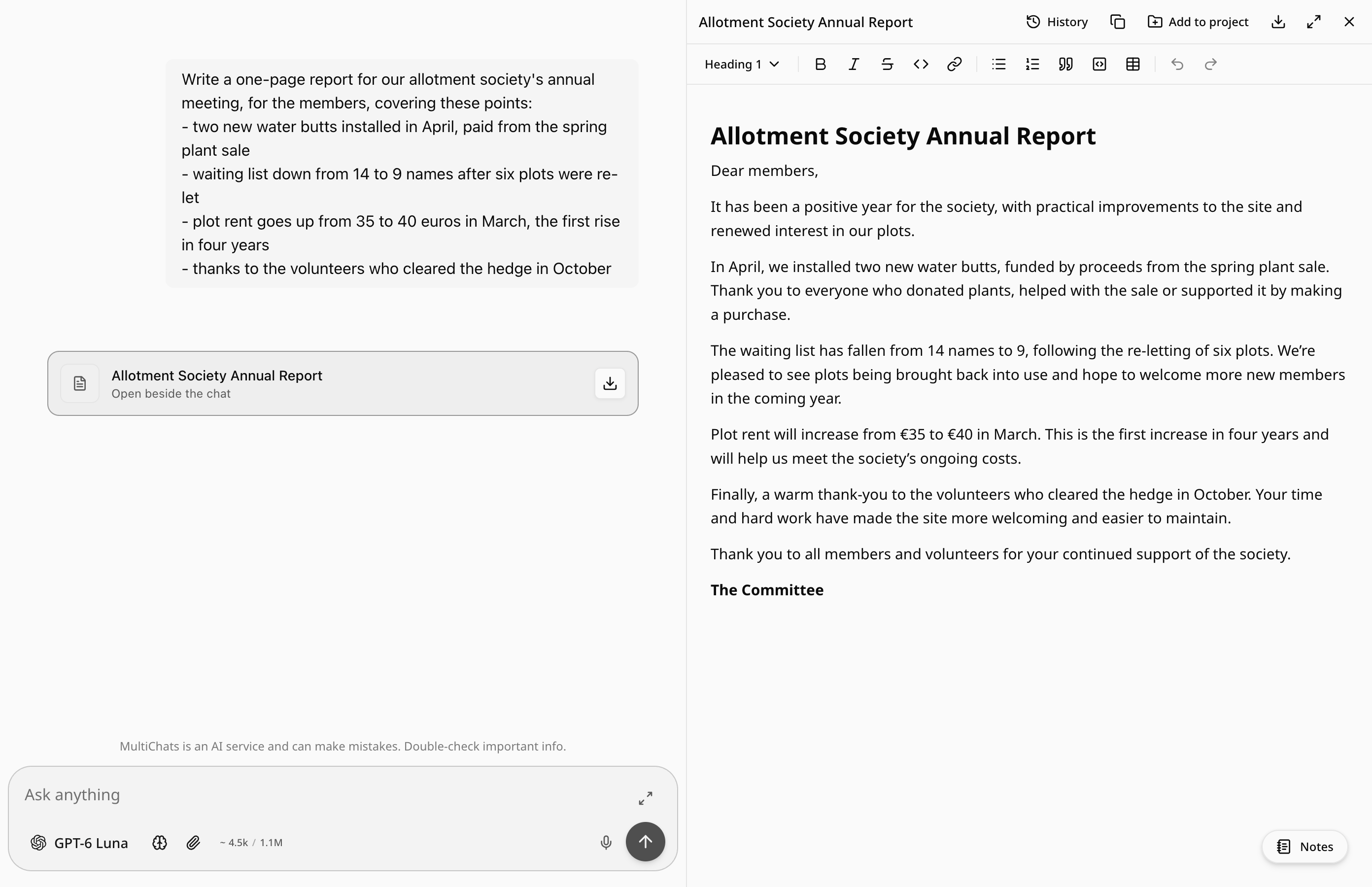
The bar along the top of the panel deals with the document as a whole:
The title. Click it to rename the document. The new name is also the file name when you download.
"History", for earlier versions.
"Copy text", which copies the whole document as plain text.
"Expand" lets the document fill the chat area, and "Show chat" brings the conversation back.
"Close document" closes the panel. In a narrow window, such as on a tablet, the panel covers the screen and "Back to chat" takes you out.
Edits save on their own: the bar shows "Saving…" and then "Saved".
Fixing it by hand
The toolbar under the top bar covers the basics.
Click into the text and type.
Use "Text style" to switch a line between Text, Heading 1, Heading 2 and Heading 3.
Select words for Bold, Italic, Strikethrough or Link, or turn lines into a Bulleted list, a Numbered list or a Quote.
Use "Insert table" for something like a budget in the trip plan, and Undo or Redo as you go.
How to have the AI rewrite one passage
The AI changes only the passage you select.
Select the passage. A small bubble appears with "Ask for changes".
Click it and type what you want in the "Describe changes" box, such as "make this warmer", then press Enter.
A "Suggested change" box opens above the text, with your original struck through and the new version highlighted.
Click "Accept" to put it in, or "Undo" to keep what you had. Escape undoes and Ctrl+Enter (Cmd+Enter on a Mac) accepts.
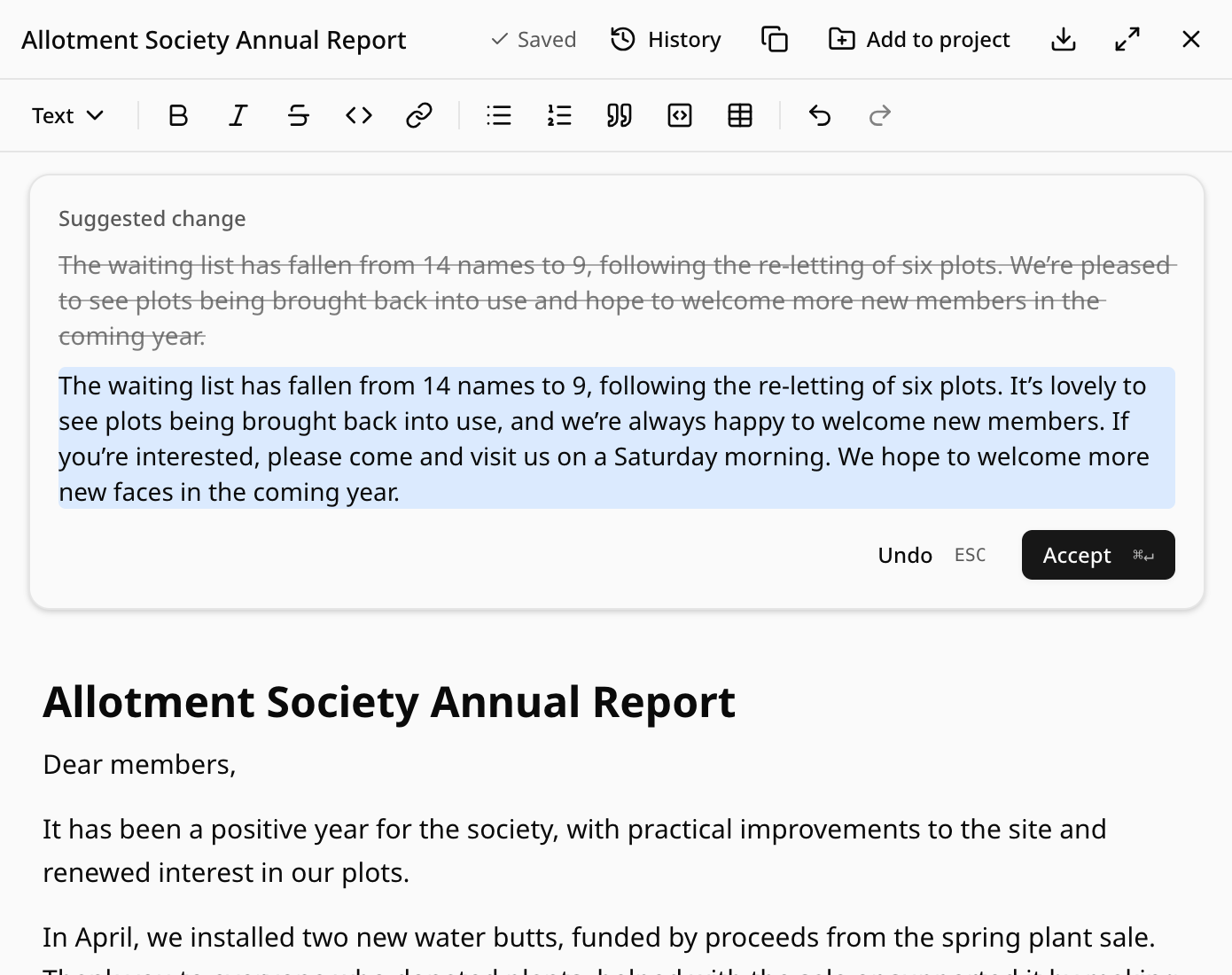
Passage edits are written by GPT-6 Luna, whichever model the chat is using, and each change is charged like one message to GPT-6 Luna. For a rewrite by the model you chose, ask in the chat instead.
If you keep typing while it works: nothing is replaced, and you see "The document changed while the AI was working. Nothing was replaced." Select the passage and ask again.
Asking in the chat instead
With the document open, type a request into the chat as usual, such as "Shorten the whole report to 300 words". The model sees the latest saved version and replies with a complete new one, which becomes the document's next version in the panel.
It only takes the document's place when that is safe:
If you edit in the panel after sending the request, your edits stay.
If the reply holds more than one document or was cut off, nothing is replaced.
If the document is too long to rewrite in one reply, the model is told to point you to "Ask for changes".
A reply that leaves the document in place stays in the chat as a separate draft. You can open it as its own document. A plain question such as "Is the tone right for members?" gets an ordinary answer.
Each reply comes from the model selected in the picker, so one model can write the first draft and another can tighten it, on the same document. ChatGPT has Canvas and Claude has Artifacts, each a workspace beside the chat inside its own app (both checked on 19 October 2026). The MultiChats panel works with whichever model you pick.
Going back to an earlier version
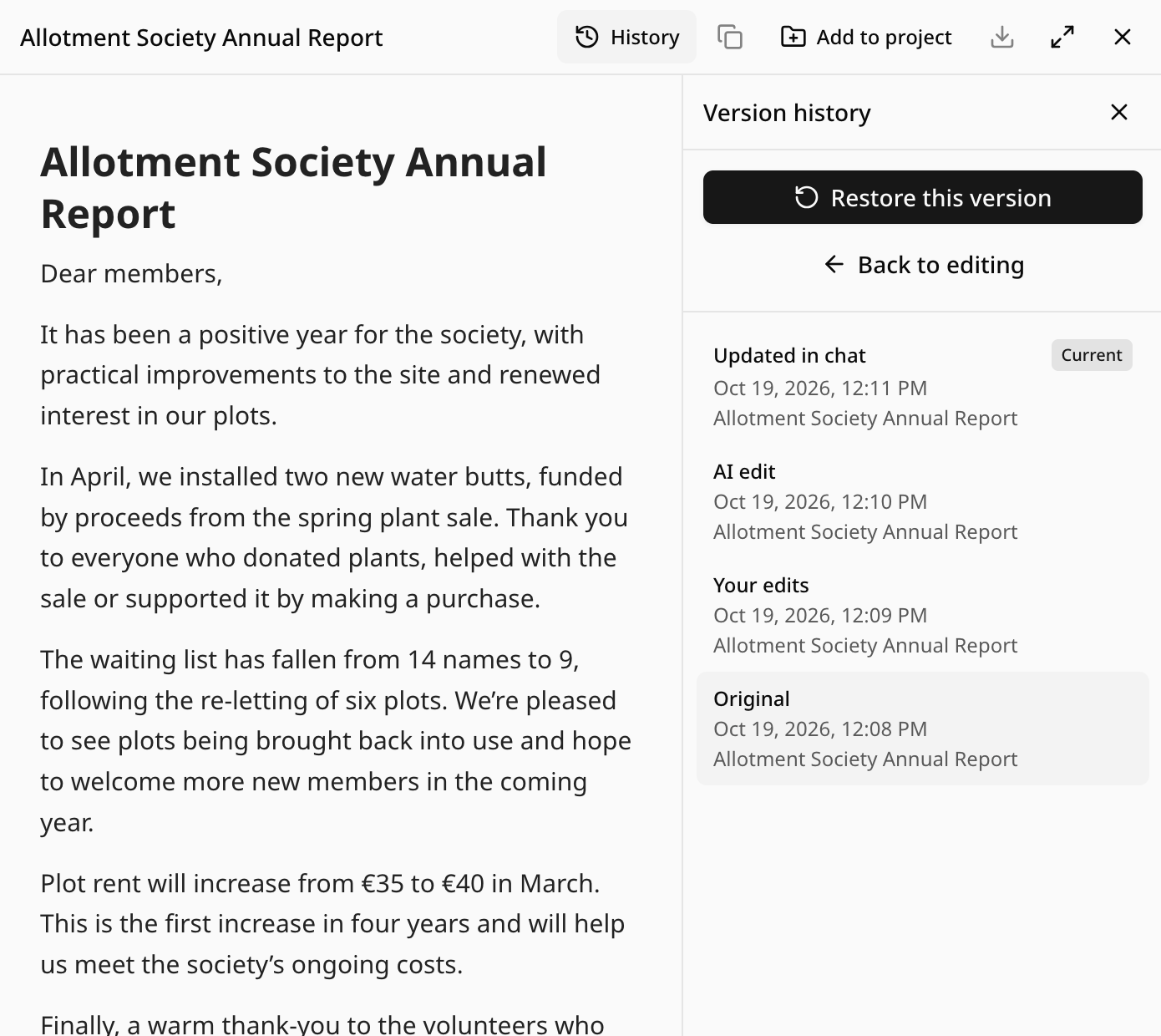
Click "History". A "Version history" list opens beside the document, newest first.
Each entry has a date and time and a label: "Original" for the first version, then "Your edits", "AI edit", "Updated in chat" or "Restored version".
Click an entry to preview it, read-only.
Click "Restore this version", or "Back to editing" to return to the current text.
Restoring adds the old text as a new version at the top, so nothing in between is lost. While you type, the history keeps roughly one checkpoint for every ten minutes of editing, and the oldest versions of a long-edited document are eventually dropped.
When a draft stops halfway
If a long document in the latest answer is cut off before the end, a "Continue document" button appears under it. Click it and MultiChats sends "Continue the document." for you. The model rewrites the whole document from the start and completes it. The document then opens beside the chat. Until then the draft cannot be downloaded.
Turning any answer into a document
A model sometimes replies in plain text even when you asked for a report, and sometimes an ordinary reply turns out to be worth keeping.
Hover over the answer to show the buttons under it.
Click the "Open as document" icon, and the answer opens in the panel.
Short pieces such as an email or a letter usually arrive in the chat as a writing card labelled Email, Letter or Writing. Each card has its own "Open as document" button. Our guides to formal letters and work emails cover what to ask for there.
Downloads and projects, briefly
"Download", on the card and in the panel, offers "Word (.docx)" or "PDF". Free accounts get a set number of exports every 30 days. The menu shows the allowance; on Pro and Pro+ there is no allowance to use up. There is no PowerPoint or Excel option.
On Pro and Pro+, "Add to project" copies the current version into the files of a project (a folder in the sidebar), so every chat in that folder can use it.
Before you tidy up the chat
A document belongs to the chat that wrote it. Deleting the chat deletes the document and its history. Editing a message above the document, or using "Re-generate" on the answer that holds it, does the same, because both replace the messages that follow.
When a document matters, download it or copy the text first. And before the report goes to the members, our guide to getting feedback on your writing shows how to ask for a useful second read.