How to save an AI answer as a Word or PDF file
Open the answer as a document, click Download, pick Word or PDF. What the free allowance counts, what survives in the file, and what to do on a phone.
On the MultiChats website, you can turn an answer into a Word or PDF file in three clicks. Open it as a document, click Download, then choose "Word (.docx)" or "PDF". As of 19 October 2026, this works on every signed-in account, free included. Free accounts get 5 exports every 30 days. Pro and Pro+ have no export allowance. The iPhone and Android apps cannot download files yet.
The three steps
Get the answer into a document. Either ask for one in your message, or click Open as document under an answer you already have.
Click Download. It is the arrow icon on the document card in the chat, or at the top of the document panel.
Pick "Word (.docx)" or "PDF". A "Preparing your file…" notice appears, then "Download started", and the file lands in your browser's downloads.
The file takes its name from the document's title. To tidy the file name, rename the document first: click the title at the top of the panel.

Want to follow along as you read? Open MultiChats
Ask for a document from the start
Describe what you want and say you want to keep it. For example: "Write my complaint to the landlord as a one-page letter I can download", or "Draft a short report on our village fête budget". There is no separate button for this. The model writes it as a document. It arrives in the chat as a compact card: the title, a line such as "Document · 412 words", an Open button and the download arrow.
While it is still being written, the card says "Writing the document…" and shows a running word count. A document generated in reply to your latest message opens beside the chat automatically. You can edit it there before you download; the file matches the version shown in the panel. For the prompt itself, see our guides to an official letter and a cover letter.
Short pieces such as emails and letters sometimes stay in the chat as a writing card. That card has its own Open as document button in its top corner.
Turn an existing answer into one
Under the answer, find the small row of icons. Click Open as document beside the copy icon (hover over it to see the label). The answer opens in the panel beside the chat, ready to download from the panel's top bar.
The icon appears under finished text answers. If you asked for a list of questions about your lease, as in our guide to understanding a contract with AI, open it as a document to make a page you can print and take to the agency.
What the free allowance counts
Free accounts get 5 exports every 30 days:
One export is one version of one document. Downloading the same version as Word and as PDF counts once.
Repeats are free. Downloading a version again, or retrying after an error, uses nothing.
Edits make a new version. Change the text after a download and the next download counts again, so finish editing first. Renaming does not count again.
The window is fixed. It starts with your first counted export and runs 30 days from there, whatever the calendar month.
The menu shows your balance. Under the two formats you see "N free exports left" and the reset date ("More on" followed by the date). Below that sits the rule itself: "5 free exports every 30 days. Each version counts once, for Word and PDF."
After you use all five, the app says "You've used your 5 free exports" and shows the date you get more. It adds that "Versions you already exported can still be downloaded."
On Pro and Pro+, there is no export allowance and no counter in the menu. One limit applies on every plan: start too many files at once and you see "Too many downloads at once. Try again in a moment."
What survives in the file
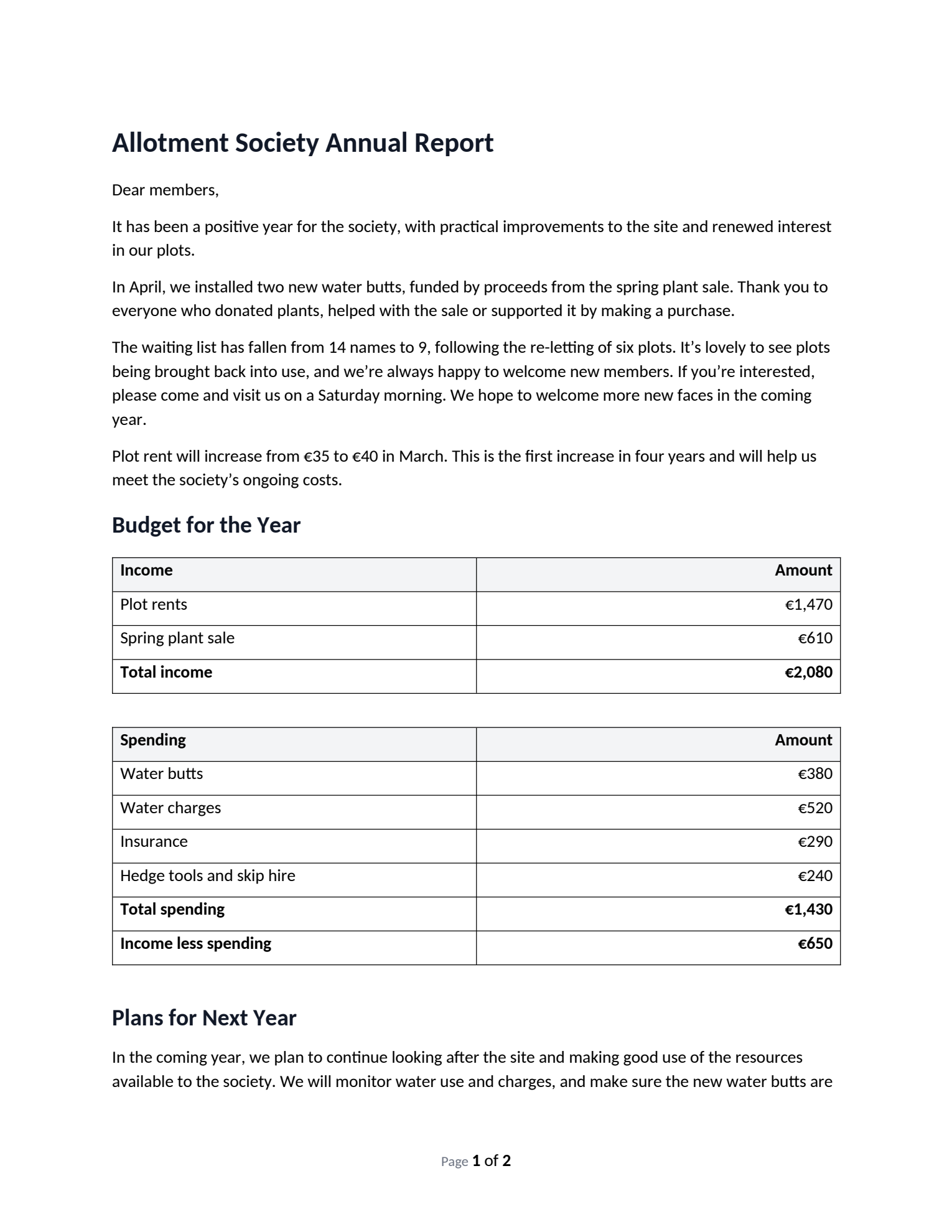
In the document | Word (.docx) | |
|---|---|---|
Headings, bold, italics, lists | Real Word headings and lists | Kept |
Tables | A Word table, header row shaded and repeated on each page | Kept, header repeated on each page |
Web links | Clickable | Clickable |
Web sources the answer cited | A "References" section at the end | A "References" section at the end |
Page numbers | "Page X of Y" in the footer | "Page X of Y" in the footer |
Maths | The raw formula text | Typeset formulas |
Pictures | A placeholder reading "[Image: ...]" | The same placeholder |
Before you print or send:
Paper size. Files come out in US Letter size. If you print on A4, change the paper size in Word first, or let your print settings scale the PDF to fit.
File properties. Both formats name MultiChats as the creator and say in the file's properties that the content is AI-generated.
When the download refuses
"This draft isn't finished, so it can't be downloaded yet." The answer was cut off part way. Click Continue document under it; the model rewrites the whole document and finishes it.
"This document is too large to download as a file." Ask for it in parts, each as its own document. Then download them one at a time.
"The document changed while the file was being prepared. Try again." You edited while the file was being made. Download again.
The Download arrow is greyed out. You are probably looking at an older version under History. Go back to editing, or restore that version first.
No download button? Copy instead
If you're signed out or have used your free exports, you can still copy. The copy icon under any answer keeps the formatting. Paste into Word or Google Docs and the headings, lists and bold come with it. Hover over a table in the chat and a small copy icon appears in its top corner. What it copies pastes as a real table. From there, Word and Google Docs can both save a PDF.
Coming from another app
If you are used to exporting answers from another chat app, in MultiChats the download sits in two places: on the document card in the chat and at the top of the document panel.
On your phone
The MultiChats apps for iPhone and Android do not have the document panel or downloads yet. The answer appears in the conversation as usual, and the copy icon under it works the same way. To get a file, open the same chat on the website from a computer.